How to print 4 PDF pages per sheet
Arrange four PDF pages in a 2 × 2 grid and save a new 4-up PDF. Check reading order, portrait versus landscape, readable text, and the final partial sheet.
In PDFImpose Online, choose N-up with two columns and two rows to combine four PDF pages into one output page. Set the paper size, inspect the reading order, then export the 4-up PDF locally with a free Google sign-in. A nine-page source becomes three output PDF pages, with only page 9 on the last side.
- A 2 × 2 grid of different pages
- A real four-page lesson sample
- Check the smallest text before printing
Four-up is a layout you can save
Four pages per sheet is useful for lecture notes, training packs, slide references, and visual proofs. Also called 4-up or 4up, it places four source pages on one side of the output paper. It does not mean four copies of one page, and it does not mean four pages across both sides of a duplex sheet.
A printer’s pages-per-sheet option can handle an immediate print job. Exporting an imposed PDF gives you an arranged file to reopen, share, or hand to a printer. Adobe documents the print-dialog route separately; PDFImpose Online’s workflow creates the new PDF layout before you send it to a device.
Build a four-up handout
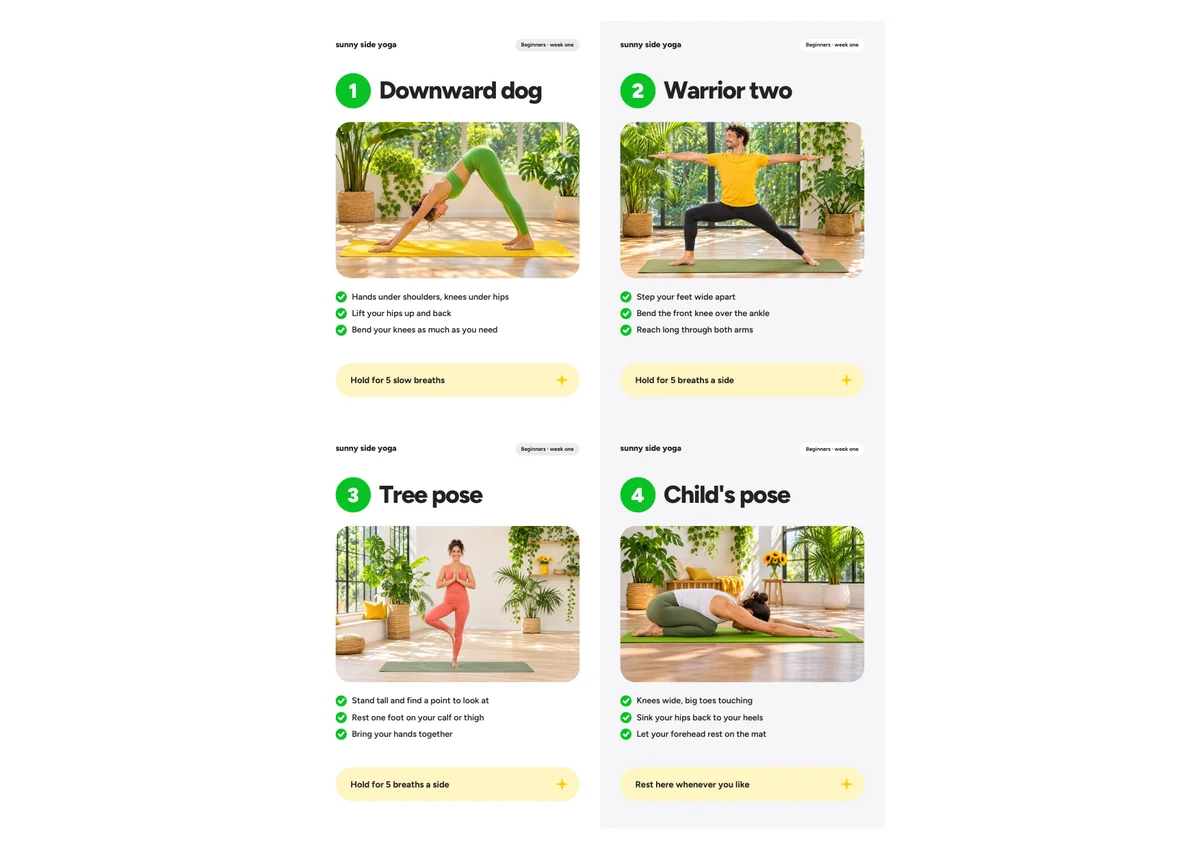
Open the Handouts 4-up sample to inspect a four-page beginner yoga handout. The preset uses a 2 × 2 N-up grid on A4 landscape. Treat that as a working example, then choose the paper and orientation that suit your own pages.
- 01
Set two columns and two rows
Open your original PDF and add N-up. Set Columns to 2, Rows to 2, and Copies of each page to 1. Leave Limit per sheet at 0 when you want every grid position available.
- 02
Choose the reading path
For a conventional handout, choose the across-row Fill order, shown as Z, with Left to right reading direction. Pages 1 and 2 occupy the first row; pages 3 and 4 follow in the second. Column-first order follows a different path.
- 03
Compare the paper orientations
Set A4, Letter, or your required paper size. Compare portrait and landscape previews rather than assuming the sample orientation is best. Keep proportions enabled and start with Fit; check margins and the gap between pages.
- 04
Read the smallest content
Inspect footnotes, chart labels, thin lines, and pale text. Four-up reduces each page, sometimes substantially. If the handout is difficult to read, use larger output paper or switch to two-up instead of merely reducing the margins.
Worked example: nine source pages
For nine input pages with a 2 × 2 grid, one copy per page, across-row order, and double-sided layout disabled, the first output side contains pages 1–4. The second contains 5–8. The third contains page 9, leaving the other positions unused. PDFImpose Online does not fill the remaining cells with extra copies or discard the odd final page.
Three output PDF pages use three physical sheets when printed single-sided. Duplex printing can place them on two sheets, but the final reverse side remains unused. Inspect every output page, including the last one, before deciding whether the result is ready to distribute.
Four slides on one page, or one page across four sheets?
For four slides per page, first export the presentation as a PDF with one slide on each source page. Open that PDF in PDFImpose Online and use the 2 × 2 layout above. If the presentation was already exported as a four-slide handout, applying four-up again reduces the handout a second time. Start from the individual slides so the page order and scale remain easy to check.
Printing one large PDF page across several sheets is the reverse task: poster tiling. PDFImpose Online’s four-up grid arranges several source pages inside one output side; it does not split one poster into four tiles. Adobe documents its Poster print option for that separate job.
Export once and avoid another four-up setting
Export the arranged PDF and open it to confirm the output page count, paper size, and reading sequence. The original nine pages now live inside three larger PDF pages. Printing the export with four pages per sheet again applies a second reduction and can put up to sixteen original pages on one side.
Use one output PDF page per side in the printer dialog. Match the output paper size and check scaling. For cut-apart artwork, verify actual dimensions and finishing space; for a handout, verify that the text remains readable on a physical proof. Four-up on a larger sheet may help, but four A4 pages do not fit on A3 at full size. Paper size, orientation, margins, and gaps all affect the resulting scale.
Before you
get started.
How do I save four pages per sheet as a PDF?
In PDFImpose Online, build a 2 × 2 N-up layout and export the result. The downloaded file contains the arranged output sides, so the layout remains visible when you reopen it without relying on a printer’s four-up option. Print that export with one PDF page per sheet side.
Why is only one position filled when I open a one-page PDF?
Sequential N-up places each source page once by default. To fill four positions with the same page, use Step & repeat with a 2 × 2 grid and suitable scaling.
Check the details.
Official product information and practical references. Reviewed .
The next step
is your PDF.
Start with a real sample. Adjust every step. Make a proof before the print run.